Is there a correct color combination?
No fixed palette is required. Choose colors and decorations to create your own version of the outline.
Choose a block-character outline and decorate it in BTS Roblox Coloring. Pick pencil colors, adjust the drawing size and add stickers to create your own version of the picture.

BTS Roblox Coloring
BTS Roblox Coloring is a creative coloring activity built around outlined block-style characters. You choose an image from a coloring-book page, then draw on a large central canvas with a row of colored pencils. The aim is to make a picture you like rather than solve a timed challenge. A selection of stickers adds another way to personalize the scene. The activity centers on a drawing workspace with colors, outlines, and decorative choices.
The opening screen offers language flags and a large Play control. Entering the coloring book reveals several outlined pictures arranged on a page. A separate panel offers an optional bonus image through an advertisement. You can begin with one of the normal visible pictures without using that bonus panel. Study the thumbnails and choose a design whose shapes appeal to you. Some feature a single block character, while others include extra objects or companions that create more small details to color.
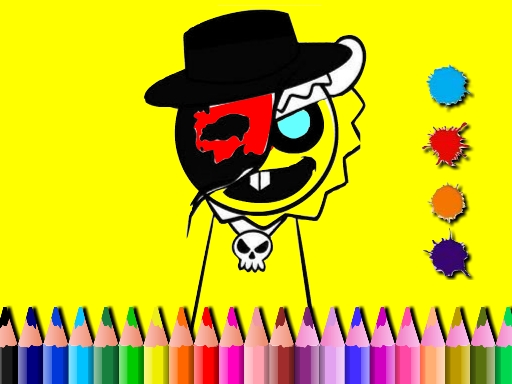
The drawing screen places the chosen outline inside a broad black frame. Colored pencils run along the bottom, plus and minus controls sit above the canvas, and stickers appear in side panels. Start by selecting one pencil and making a short mark in a clear part of the drawing. This confirms the current color and drawing behavior before you work on a detailed area. The visible line art remains your guide, but you decide the palette and how closely the coloring should follow the original shapes.
Think about a small set of main colors before filling the whole character. A color for clothing, another for hair or accessories, and a contrasting accent can make the image feel coherent. You are free to change those choices as you work. The important point is to compare the colors on the canvas rather than assuming every bright pencil needs to be used. A limited palette can make small details stand out, while a broader selection can give the same outline a deliberately playful appearance.
The plus and minus controls help adjust the drawing size for different parts of the image. A broader mark is useful in an open region, while smaller strokes are easier to manage near a face, a hand, or a narrow outline. Check the result of a size change before drawing a long line. Working from large areas toward details is often easier than beginning with the smallest feature. It gives you a clear foundation and lets you choose accents according to the colors already present on the character.
Use mouse or touch gestures to draw rather than expecting every outlined region to fill automatically. Short, controlled strokes make it easier to stay within the area you intend to color. If you want a loose sketch-like result, visible marks can become part of the style. If you prefer a cleaner result, slow down near boundaries and reduce the drawing size where useful. The activity supports experimentation, so compare the effect on the actual picture instead of treating one technique as the only correct way to color it.
Stickers offer a different kind of composition choice. The side panels show decorative characters and objects that can be moved into the scene. Place a sticker where it adds to the picture without hiding a detail you want to preserve. The screen includes a trash area with instructions to drag stickers there to delete them. This lets you reconsider decoration independently of the coloring. Try one sticker first and judge its size and position in relation to the main character before covering the canvas with several unrelated objects.
The top toolbar includes a home control and other editing or capture icons. Learn what a control does before using it on a picture you want to keep, especially when its symbol suggests resetting the work. A quick visual review is useful before leaving the canvas: check whether the main colors feel balanced, whether small details remain readable, and whether any sticker obscures the outline unnecessarily. These are creative decisions, so the best version is the one that matches the look you intended rather than a fixed answer supplied by the game.
BTS Roblox Coloring suits players who enjoy choosing colors and decorating a recognizable character outline at their own pace. The wide canvas, pencil palette, size controls, and movable stickers provide several ways to approach the same drawing. Begin with a normal picture from the book, test one color, and develop the design from its largest shapes to its smaller accents. The result is a personal interpretation built through visible choices, with room to experiment before deciding that the picture feels complete.
No fixed palette is required. Choose colors and decorations to create your own version of the outline.
No. The coloring-book screen already provides normal pictures to select; the advertisement panel is for a separate bonus image.
The drawing screen indicates a trash area. Drag the sticker there to delete that decoration.